


How to Back Up Your iPhone Before Any Repair
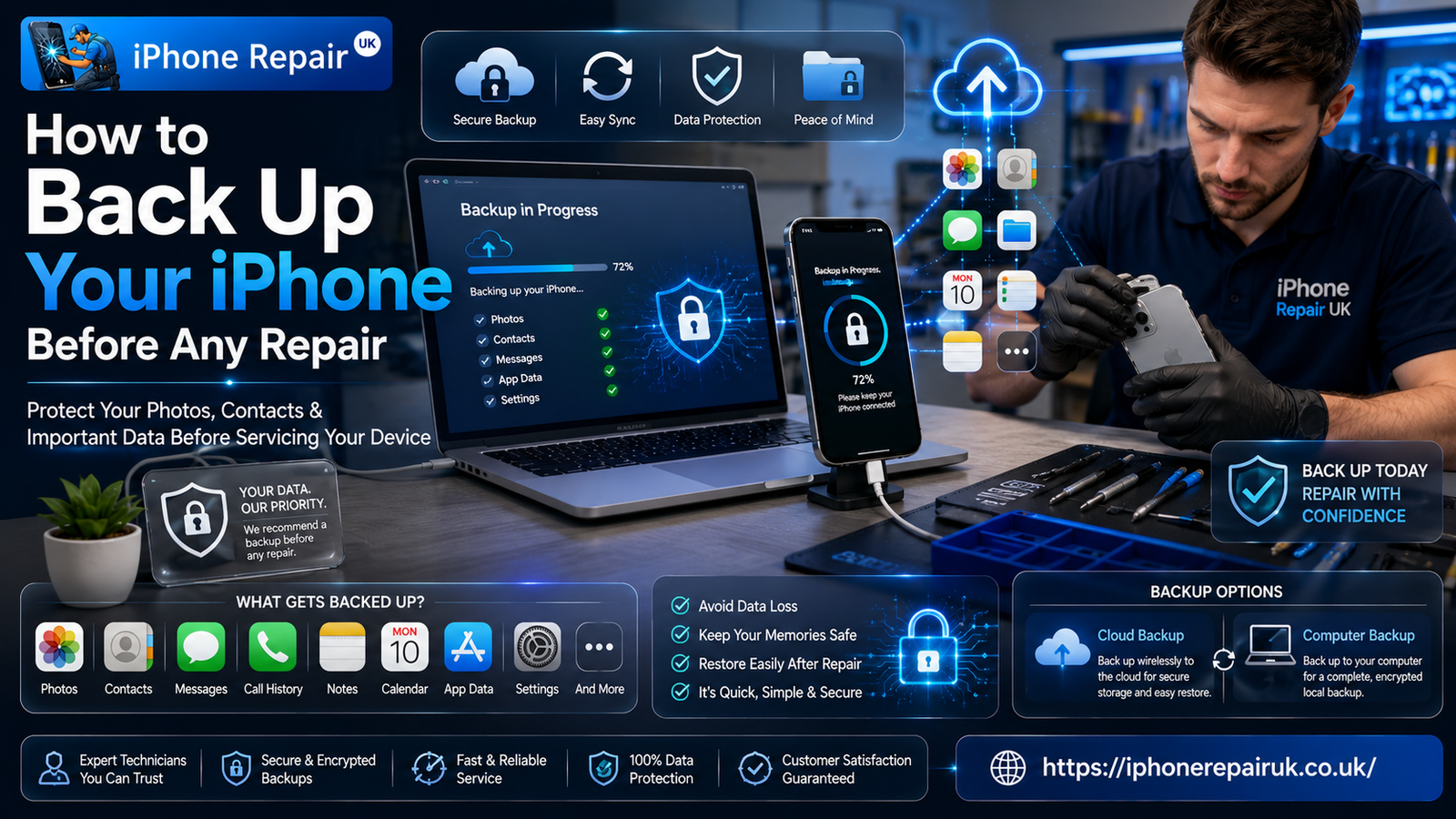
Most hardware repairs, from a cracked screen to a battery replacement, never touch the data stored on an iPhone at all, and that's true regardless of which specific model or repair type is involved. Even so, backing up beforehand is sensible practice rather than an unnecessary precaution, since it costs nothing, takes only a few minutes, and means there's simply no scenario where anything meaningful could be lost as a result of the visit. This guide walks through the two main backup methods available, what each one actually captures, and a few details that catch people out if they're not aware of them.
Why Backing Up Matters Even for a "Safe" Repair
The overwhelming majority of common repairs are entirely hardware-focused. Replacing a screen, a battery, or a charging port involves physically swapping a component and doesn't require accessing anything stored in the phone's memory. That said, a backup remains worth doing for a simple reason: things occasionally go wrong in ways that have nothing to do with the repair itself, such as an unrelated software fault appearing during testing, or a phone needing a factory reset to resolve an unconnected issue discovered along the way. Having a recent backup means none of these scenarios carry any real risk to your photos, messages, or app data.
It's also just good general practice regardless of repairs, since phones get lost, damaged beyond repair, or stolen, and a current backup means none of those situations result in genuinely lost memories or important information down the line.
Method One: iCloud Backup
iCloud backup is the simplest method for most people, since it happens over WiFi without needing a computer or cable. To back up manually, go to Settings, tap your name at the top, then iCloud, then iCloud Backup, and tap Back Up Now. This captures photos and videos not already saved elsewhere, device settings, app data, messages, ringtones, and the general configuration of your home screen and apps.
A few things are worth knowing about iCloud backup specifically. It requires enough iCloud storage to complete, and Apple's free tier is quite limited at 5GB, which fills quickly for anyone with a substantial photo library. If storage is insufficient, the backup will either fail or only partially complete, so it's worth checking available storage before assuming the backup succeeded. It also requires a stable WiFi connection and enough battery charge, or the phone connected to power, to complete without interruption.
Method Two: Computer Backup
Backing up via a computer, using Finder on a Mac running a recent version of macOS or the Finder equivalent, or iTunes on Windows or older macOS versions, creates a full backup stored on your computer's own storage rather than relying on iCloud space. This method has no storage limit tied to a paid subscription, since it uses whatever free space is available on your computer's hard drive, making it a genuinely useful alternative for anyone whose photo library or data exceeds free iCloud storage.
To do this, connect your iPhone to your computer with a cable, open Finder or iTunes, select your device when it appears, and choose to back up now. It's worth checking the box for encrypted backup if available, since this also includes saved passwords and health data that an unencrypted backup doesn't capture, adding a genuinely useful layer of completeness to what gets saved.
What Gets Backed Up and What Doesn't
Both methods capture the vast majority of what most people care about: photos and videos, messages, contacts, calendars, notes, reminders, app data for most apps, device settings, and Health app data (when encrypted). What typically doesn't get backed up includes content already stored in the cloud through services like Apple Music, movies and shows purchased through iTunes but not downloaded, and data from certain apps that manage their own separate cloud sync, such as some banking or authentication apps that intentionally exclude their data from general phone backups for security reasons.
It's also worth knowing that Face ID and Touch ID data itself is never included in any backup, for security reasons, meaning these need to be set up fresh on any new or restored device regardless of which backup method was used.
Checking That Your Backup Actually Completed
A backup that silently fails partway through is more common than people expect, particularly with iCloud backup when storage runs out mid-process. To check an iCloud backup succeeded, go to Settings, your name, iCloud, iCloud Backup, and look for the date and time of the most recent successful backup listed there. For a computer backup, Finder or iTunes will show a confirmation and the backup's size once complete, and you can check the date of the most recent backup in the same location where you initiated it.
If the listed backup date is older than expected, or doesn't reflect a backup you thought you'd just completed, it's worth investigating why before assuming everything is safely saved, since an old backup obviously won't include your most recent photos or messages.
A Few Practical Tips
Backing up the night before a scheduled repair, rather than rushing through it in the shop's car park minutes before your appointment, avoids the stress of a slow connection or unexpected storage issue right when you need the backup done quickly. If you're using iCloud and storage is tight, temporarily deleting large video files you've already saved elsewhere, or upgrading to a paid iCloud tier for the short term, are both reasonable ways to make sure everything fits.
It's also worth taking a quick mental note, or even a screenshot, of your Apple ID and password before heading in for a repair, particularly one involving Face ID components, since you may be asked to sign back in during testing to confirm everything is working correctly afterwards.
Common Backup Mistakes Worth Avoiding
A handful of avoidable mistakes account for most backup problems people encounter. Assuming a backup completed just because you tapped the button, without checking the confirmation date afterwards, is probably the most common one, particularly when a WiFi connection drops partway through without an obvious error message appearing. Relying solely on automatic overnight backups without ever checking they're actually succeeding is another, since a phone that's been failing to back up automatically for months, perhaps due to full iCloud storage, gives no obvious warning unless you specifically go and check.
It's also worth avoiding the trap of backing up right as you're walking into an appointment, since a rushed backup on an unfamiliar WiFi network is more likely to run into problems than one done calmly the night before with a connection you know is reliable. Similarly, forgetting your Apple ID password when it's needed to verify a backup or restore can turn a five-minute task into a frustrating delay, so it's worth confirming you can log in before you actually need to.
Backing Up Specific Types of Data People Often Forget
Beyond the obvious photos and messages, a few categories of data are easy to overlook when thinking about what a backup covers. Notes, particularly ones with attached sketches or scanned documents, are included in a standard backup but are sometimes assumed to be separate. Voice memos, health and fitness data recorded through the Health app, and saved WiFi passwords are all captured too, provided you're using an encrypted computer backup for the WiFi password element specifically, since standard iCloud backup doesn't include this particular detail.
App-specific data varies more than people expect. Many apps store their own data in the cloud independently of Apple's backup system, meaning your progress or settings in that particular app would be recoverable simply by logging back in on any device, regardless of whether it was included in your phone backup at all. Other apps rely entirely on the local backup to preserve their data, so it's worth understanding which category any app you consider important falls into, particularly for something like a fitness tracking app with data you'd genuinely miss if it were lost.
Restoring From a Backup If Needed
In the rare case a restore is genuinely needed, whether because of an unrelated software issue found during repair or simply as a precaution, the process is straightforward. During the initial setup process on the phone, choosing to restore from an iCloud or computer backup pulls everything back onto the device, though it can take anywhere from several minutes to a couple of hours depending on how much data is involved and your connection speed. It's normal for photos in particular to take a while to fully redownload even after the phone appears otherwise set up and usable.
Getting Repairs Done With Peace of Mind
Whatever specific repair your iPhone needs, from a screen replacement to a battery swap, a few minutes spent backing up beforehand means there's no need to think twice about data during the visit itself. Most hardware repairs at iPhone Repair UK are completed the same day, and technicians are happy to answer any questions about what a specific repair does or doesn't involve if you're ever unsure whether backing up first is necessary for your situation.
Frequently Asked Questions
Do I need to back up before a simple screen or battery replacement?
Strictly speaking, these repairs don't touch stored data, so a backup isn't required for the repair itself to be safe. It's still sensible general practice, since it costs little time and removes any need to worry about the rare, unrelated issue that might otherwise cause concern.
How long does an iCloud backup usually take?
This depends heavily on how much data needs backing up and your connection speed. A phone with a small amount of data and a fast WiFi connection might complete in a few minutes, while a phone with a large photo library could take considerably longer, sometimes the better part of an hour.
Can I back up over mobile data instead of WiFi?
By default, iCloud backup only runs automatically over WiFi to avoid unexpectedly large mobile data usage, though a manual backup initiated through Settings can sometimes proceed over mobile data depending on your specific settings. WiFi remains the more reliable and cost-effective option where available.
What happens if I don't back up and something does go wrong?
In the rare case data is affected by an unrelated issue during a repair, without a backup, that data typically can't be recovered afterwards. This is precisely why backing up beforehand, even for repairs that shouldn't affect data at all, is worth the small amount of time it takes.
Is it safe to back up my phone in a repair shop's waiting area?
Yes, backing up is just data transfer to iCloud or a personal computer and doesn't involve anything specific to the location. It's just as safe to do while waiting for an appointment as it would be at home, provided you have a stable internet connection.
Will backing up my phone slow down the repair process?
No, backing up is entirely separate from the repair itself and doesn't need to happen at the workshop. It's best done at home beforehand so you're not relying on an unfamiliar WiFi connection or feeling rushed while a technician waits to begin the actual repair.
Do both iCloud and computer backups capture the same information?
They're very similar but not identical. A computer backup with encryption enabled captures a couple of additional details, such as saved WiFi passwords, that a standard iCloud backup doesn't include. For most everyday purposes, either method covers what matters most, though it's worth knowing this distinction exists if you're relying on a very complete backup for a specific reason.

 Arabic
 French
 Spanish
 Portuguese
 Deutsch
 Turkish
 Dutch
Dutch
 Italiano
 Russian
 Romaian
 Portuguese (Brazil)
 Greek
Greek